IPTC Templates
IPTC Templates let you save reusable metadata presets and apply them from multiple places in PhotoCuller.
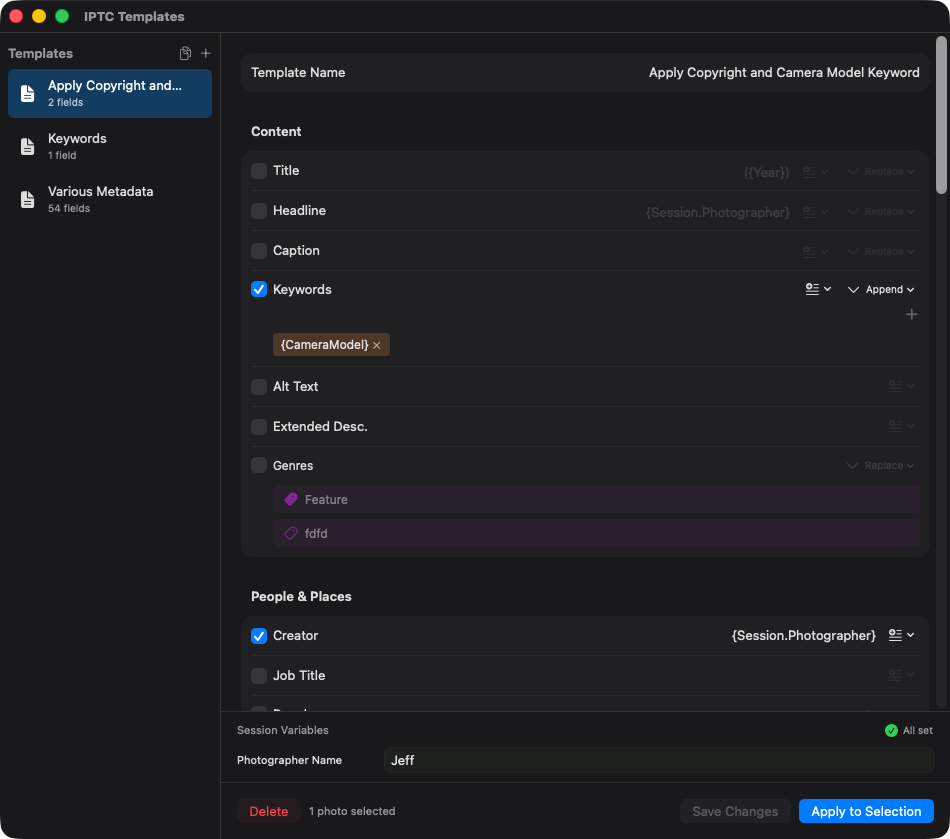
Open Template Manager
- Toolbar IPTC Templates button
- Menu: Tools > IPTC Templates…
- Shortcut: Cmd + Shift + T
Build a Template
For example, save a copyright notice to reuse on a shoot:
- Open + > New Template…, enter a name, and click Create.
- Enable the copyright-notice field and enter your text. Leave fields you do not want to change disabled.
- Click Save Changes.
- Select a few test photos in the browser, then choose the template in the manager and click Apply to Selection.
- Check the saved metadata on those photos before applying it to a larger selection.
Disabled fields are ignored when applying a template. Click Save Changes to keep your edits; Apply to Selection saves the draft before applying it.
Enable Keywords and use its list button to choose Saved Keywords, or type your own. Choosing words fills the template; click Save Changes to keep them. Renaming or deleting a word in the saved list does not change existing templates. Check the keyword merge mode before applying to photos.
Import from Photo Mechanic
PhotoCuller can import Photo Mechanic template files.
- Open the + menu in Template Manager
- Choose Import from Photo Mechanic…
- Select a Photo Mechanic
.xmptemplate file
Imported templates become normal PhotoCuller IPTC templates, so you can review the fields, enable or disable specific rows, and reuse them anywhere PhotoCuller supports templates.
Export as XMP
Save your changes, then right-click the template in the list and choose Export… to save an .xmp file. Export uses the saved template’s enabled field values. It is not a complete backup of field switches or Replace/Append/Prepend rules; review those after importing. Session-variable placeholders are not filled by export.
Merge Modes
For supported fields, select merge behavior:
- Replace - overwrite destination value
- Append - keep existing value, then add template value
- Prepend - add template value before existing value
This is especially useful for keywords, captions, rights, and list-like IPTC content.
Session Variables in Templates
Templates support session variables such as {Session.Client}.
Before apply/execute, PhotoCuller validates required variables.
- Missing required values block execution
- Fill them in the session-variable prompt or panel, then apply again
- Save common session values as presets so repeated clients, events, or assignments can be loaded quickly
Apply Templates
From Template Manager
Use Apply to Selection when you already have selected items.
From IPTC Editor (multi-select)
- Select multiple items.
- In IPTC Editor, choose a template.
- Fill required variables.
- Review the filled fields and click Apply to N Photos to save them.
From Context Menu
Right-click selected items and use Apply IPTC Template.
From Ingest
Assign a template in the Ingest window when you want copied files captioned or credited as they land.
From Workflows
In the Workflows editor, add and connect Apply IPTC Template, then choose the template and Apply To: Outputs for delivered files, Source Items for in-place source edits, or Both. A source-only workflow needs no export destination. Save before running and check the target to avoid unintended source changes; see Workflows.
From Quick Workflow
Use Tools > Quick Workflow… and add an Apply IPTC Template processing step when you want a one-off selected-item delivery to include saved IPTC metadata.
Deletion Safety
Before deleting a template, replace it in any workflows or ingest presets that use it. The manager does not block deletion just because it is referenced. Deleting a template does not undo metadata already applied.