Code Replacements
Code Replacements let you map short codes to full text values using tab-delimited files, similar to Photo Mechanic code replacements.
This is useful when you repeatedly type locations, client names, or copyright text.
Open Code Replacements Manager
- Menu: Tools > Code Replacements…
- Shortcut: Cmd + Shift + R
In the manager, you can add files, enable/disable them, reorder them, search codes, and test expansion.
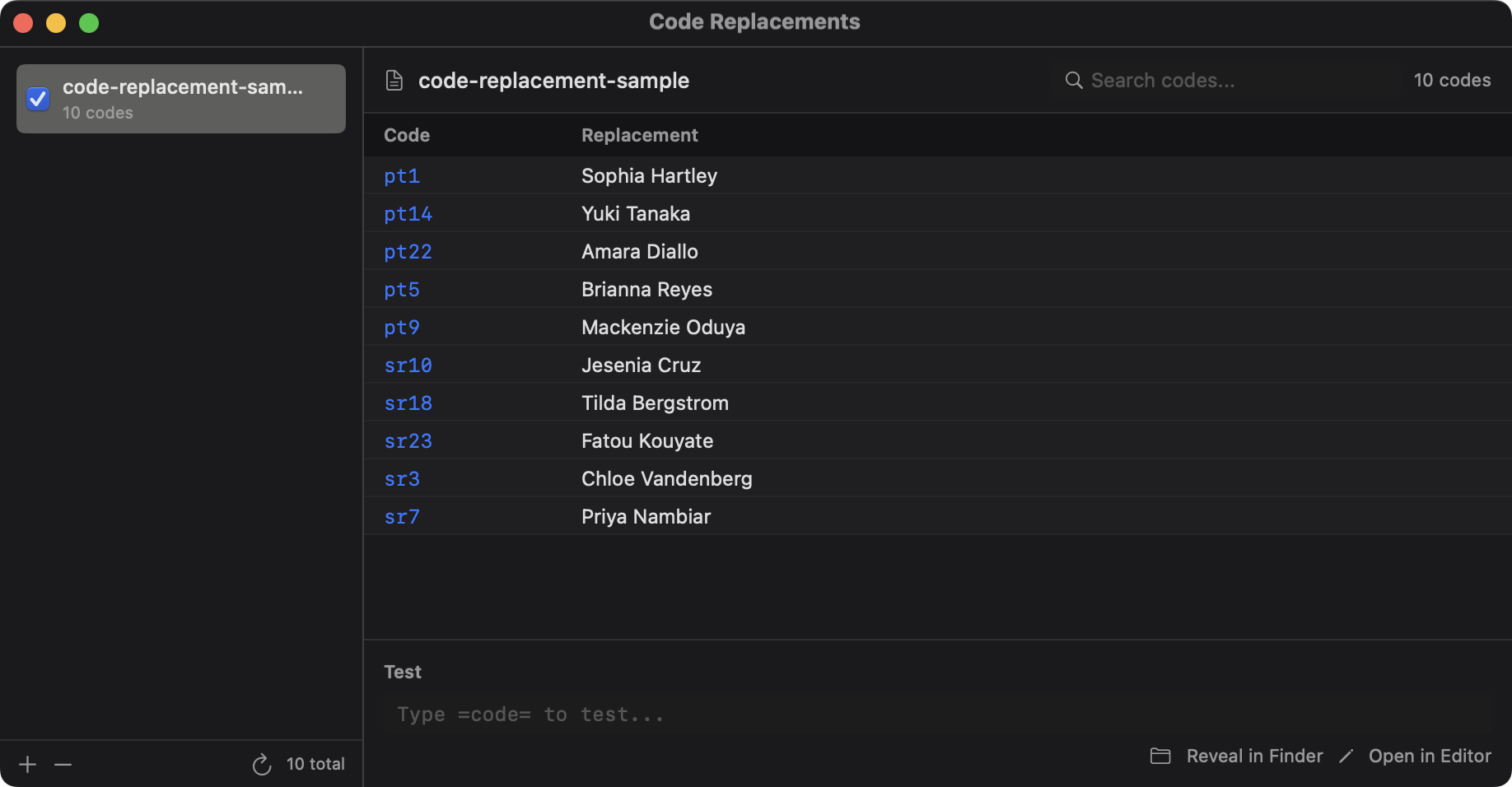
File Format (TSV)
Each line is tab-delimited:
code<TAB>replacement1<TAB>replacement2<TAB>...Example:
city_sf	San Francisco	SF
client_smith	Smith Family	Smith
Try the Example
- Save the example above as a tab-delimited text file.
- Click + in the manager to import the file, and make sure it is enabled in the list.
- Enter
=city_sf=in the test area. The result should beSan Francisco. - Use the same code in a supported IPTC text field to insert that text.
Syntax in Text Fields
Use delimiters around your code:
=code=-> uses first replacement value=code#2=-> uses second replacement value=code#3=-> uses third replacement value
Example:
=city_sf=resolves toSan Francisco=city_sf#2=resolves toSF
Trigger Settings
In the manager’s Syntax section, Trigger changes the default = delimiter. Require closing trigger for inline expansion is on by default; turn it off to expand supported inline text when you type a space or punctuation after the code. Templates still require both delimiters. Use Test to check the result.
Enable Add space after replacement in the same Syntax section to append a space after each inline expansion as you type. It is off by default. For example, expanding =city_sf= inserts San Francisco followed by a space, ready for the next word. Try it in Test before using it in your IPTC fields. This option affects inline typing, not code replacements resolved when a template runs.
Inline Variable Lookup Syntax
You can also look up a code replacement value directly inside a template string without using the =code= delimiters. Use the {CodeReplacement} template variable form:
{CodeReplacement:TableName:Value}- TableName — the set’s current name, initially the imported filename without extension; renaming the set changes named lookups
- Value — the code to look up; can be a static string or a resolved variable
Example — look up city_sf from a file called cities.txt:
{CodeReplacement:cities:city_sf}You can also pass a resolved template variable as the lookup key:
{CodeReplacement:clients:{Session.Client}}This resolves {Session.Client} first (for example, smith), then looks up smith in the clients table.
Use the {CodeReplacement} form when you need the result inside a longer
template path or filename, and the =code= form when expanding codes in plain
text metadata fields.
Multiple Files and Priority
You can load multiple code replacement files.
- Expansion uses the first enabled file containing the requested code and replacement column.
- Within one file, a later row with the same code replaces the earlier row.
- Reorder files in the left list to change precedence. Avoid duplicates and use Test to verify expansion.
Chaining with Template Variables
PhotoCuller resolves template variables first, then code replacements.
That means patterns like this work:
={MonthName}=If {MonthName} resolves to December, PhotoCuller then tries to resolve =December= from your code tables.
Where Code Replacements Apply
Code replacement expansion is available in supported template/text inputs, including:
- Workflow and ingest templates
- Rename/Copy-Move template fields
- IPTC text fields that support inline expansion
Use the built-in Test area in the manager to validate your code files quickly before using them in production workflows.
Edit and Reload
Select a set and use Edit, then Save, to change PhotoCuller’s stored copy. This does not rewrite the imported TSV; Export… saves a separate file.
After changing the original TSV externally, click Reload Code Replacements or press Cmd + Option + Shift + R. Reload replaces stored contents for linked, accessible files, including any in-app edits. If the original cannot be accessed, use Replace from TSV… to select it again. Failed reloads retain the previous contents.
Troubleshooting
- No replacement happens: confirm the file is enabled and code exists exactly (case-sensitive).
- Wrong value resolves: check file order and duplicate code precedence.
- Expected
#2value missing: verify the line has a second replacement column. - File issues: check for literal tab separators, reload errors, and the Test result. Lines without a code and replacement column are ignored.