Grid View
Grid View is the default workspace when you load a source folder.
It is designed for fast first-pass decisions across many photos at once.
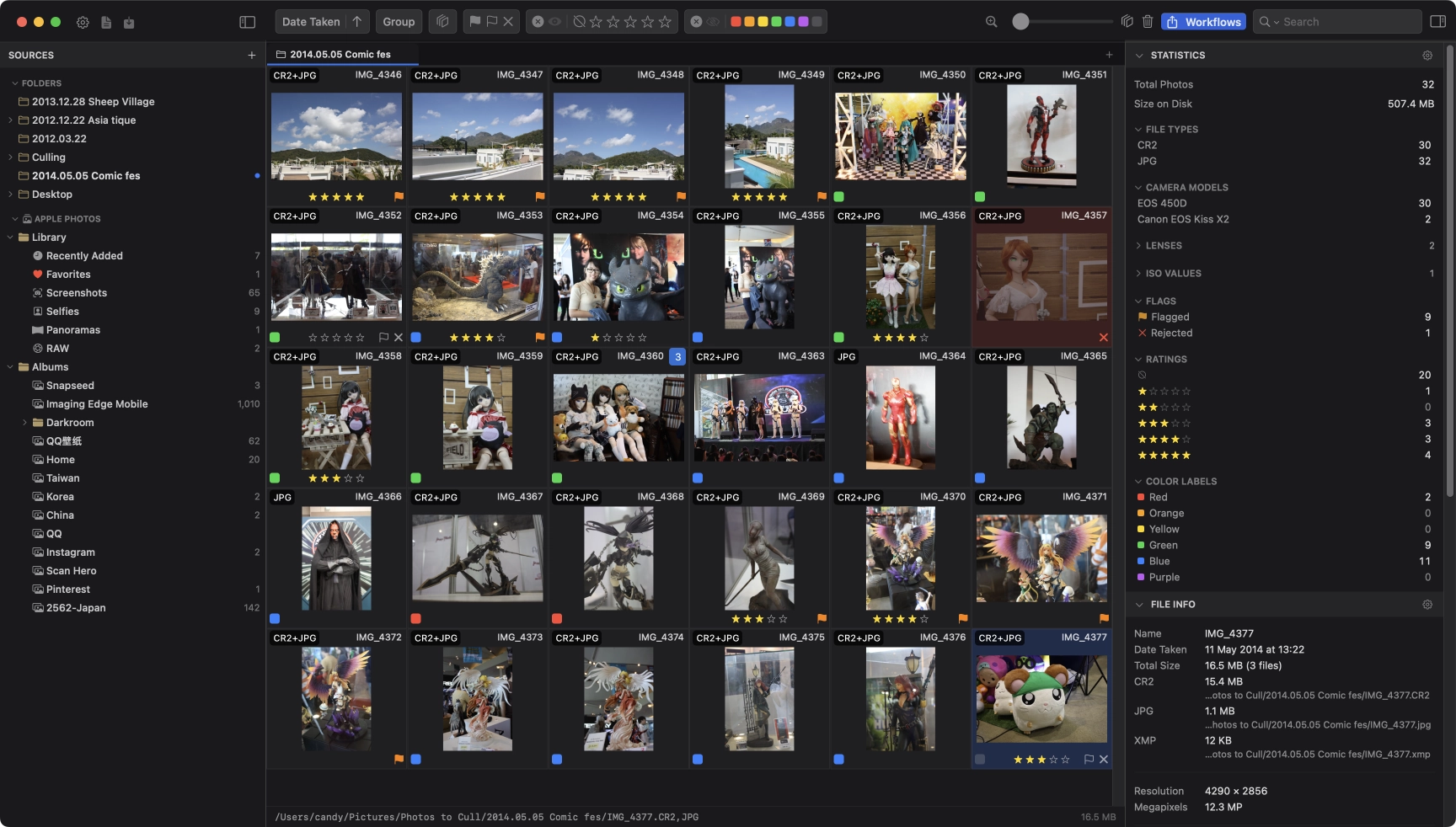
Toggle View
Use the toolbar’s Grid View / List View buttons to switch the active tab between thumbnails and a metadata table. List View shares search and filters but shows stack members as individual rows and turns off Custom Order.
Press Space to open Full View for a larger look at the focused photo.
Press Space or Esc to return to Grid View from Full View.
Basic Navigation
Move the focused photo with arrow keys or W/A/S/D.
Select Photos
- Add or remove individual photos with Cmd + Click
- Select a range with Shift + Click
- Select all visible photos with Cmd + A
- Rubber-band drag an empty area to select a region
Search
Press Cmd + F to focus the search bar in the toolbar. Press Esc to clear and return focus to the grid.
Search Field
Click the field selector to choose what to search:
- Any searchable field - searches filename plus searchable IPTC and EXIF text fields
- Metadata - searches across searchable IPTC and searchable EXIF fields, but not the filename
- Searchable IPTC - searches IPTC text fields such as title, caption, creator, keywords, city, and person names
- Searchable EXIF - searches EXIF text fields such as camera make/model, lens, and software
- Filename - file name only
- Title, Caption, Headline, Keywords, Alt Text, Extended Description - individual IPTC content fields
- Creator, Copyright - rights and contact fields
- City, State, Country, Sublocation - location fields
- Person Names, Event Name - people and event fields
Match Mode
Choose how the query is applied:
- Contains - matches anywhere in the field value
- Contains All - all typed words must appear somewhere in the value
- Contains Words - matches complete words from the query
- Matches Any - matches any term from a comma-separated or line-separated list
- Doesn’t Contain - excludes matching items
- Starts With / Ends With - prefix or suffix match
Search combines with all other active filters using AND logic - you can search within an already-filtered view.
Sorting, Grouping, and Filtering
Use the toolbar controls to narrow and organize the grid:
- Sort - by date taken, filename, rating, file size, camera model, and more; toggle ascending/descending
- Custom Order - manually arrange photos in your own sequence. In a grouped view, photos can be arranged within their current section but not moved between sections
- Group by - group photos by hour, day, week, month, year, Similar Scenes, stack, camera, lens, ISO, or location
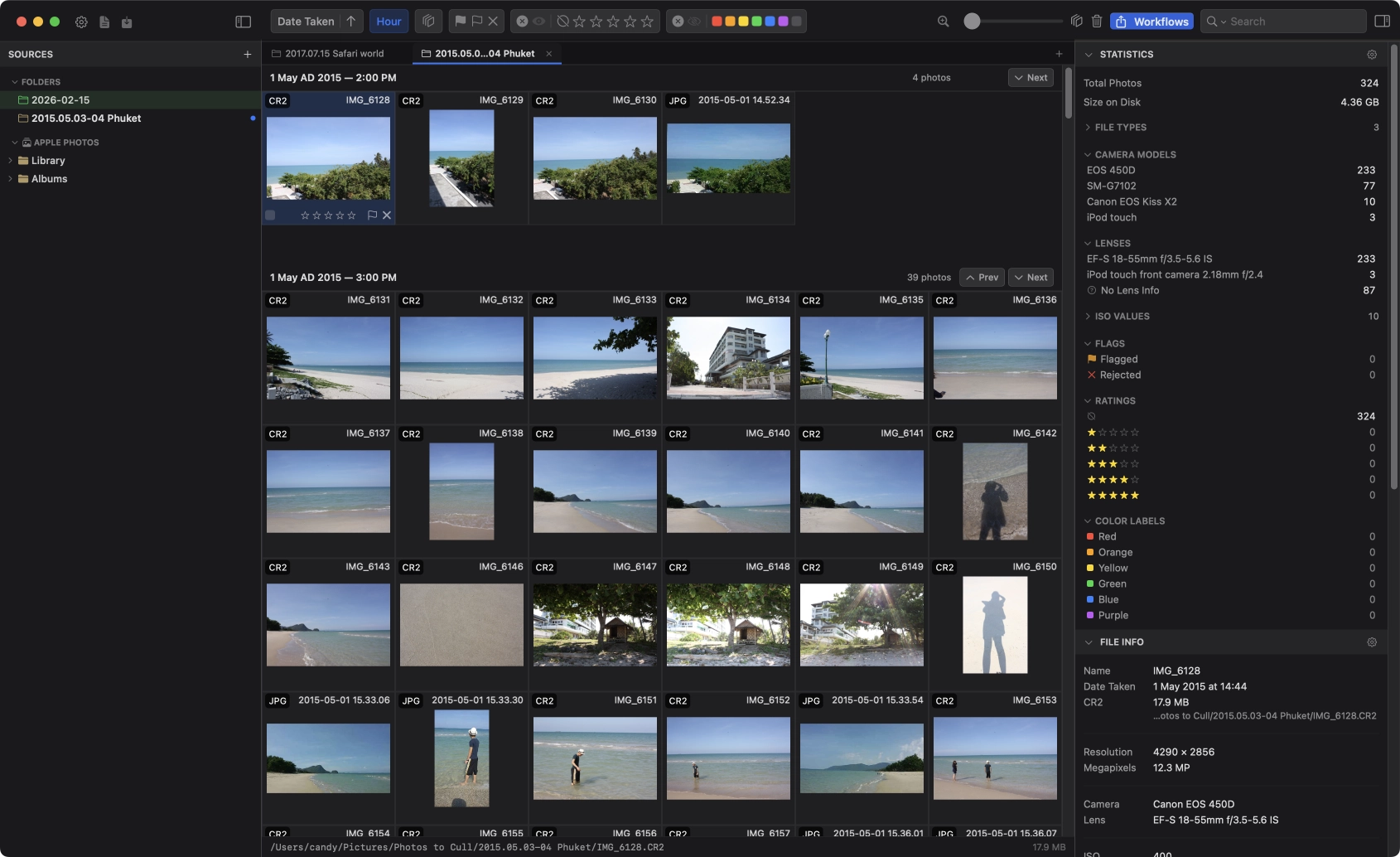
Similar Scenes
Choose Group By > Similar Scenes to analyze a filesystem source and place visually related images into temporary sections. Analysis runs locally and does not create stacks, write metadata, or modify your photos. PhotoCuller can reuse previous results, so changing ratings or filters usually does not require another analysis.
Similar Scenes is available for filesystem-backed sources only. You can cancel while it is processing; cancellation returns Group By to Off.
See Grouping and Similar Scenes for source support, grouped Full View navigation, and the difference between temporary groups and persistent stacks.
- Stack filter - show all photos or stacked items only
- Flag/status filter - flagged, favorite, and rejected state filters
The heart filter matches PhotoCuller Favorite state on individual items. This is separate from opening the Apple Photos Favorites smart album in the sidebar, which changes the source album you are browsing.
With Group By > Off, dragging onto a photo creates a stack by default; hold Option to use Custom Order. Every active Group By mode uses arrangement instead, limited to the current group. You can change the flat-grid default in Settings > Grid View > Photo drag behavior.
Rating Filter
The rating filter uses a multi-select include/exclude model:
- Click any star button(s) to select a set of ratings
- The default mode is include - shows only photos with the selected ratings
- Click the mode toggle to switch to exclude - hides photos with the selected ratings (the filter background turns red as a reminder)
- Option + click a star to jump straight to exclude mode for that rating
Color Label Filter
Color label filtering also supports include and exclude modes. Select one or more labels, then toggle between include and exclude.
Filter Presets
The toolbar also includes a Filter Preset picker.
- Use it when you want to reapply the same saved subset later
- Create and edit presets from Tools > Filter Presets… or from the Workflows editor
- When a preset is active, the manual filter controls are dimmed and locked until you clear the preset or switch back to None
See Filter Presets for a dedicated guide to preset logic, management, and workflow use.
Bulk Culling Actions
With multiple photos selected, your normal culling shortcuts apply to all of them at once.
You can rate, add a color label, flag, favorite, reject, or rotate all selected photos in a single action.
PhotoCuller uses consistent culling-state rules in Grid View:
- Rejecting a photo clears its flag and favorite state
- Applying a positive rating to a rejected photo unrejects it
- Flagging a rejected photo unrejects it
- Favoriting a rejected photo unrejects it
Rotation is available for filesystem items only.
Auto-Advance
When Auto-advance is enabled (Settings > General), PhotoCuller moves focus to the next photo automatically after you apply a rating, color label, flag, or favorite. This keeps your hands on the keyboard for continuous culling without manually pressing an arrow key between each photo.
Grid Size
Use the grid size slider in the toolbar to adjust thumbnail size. Larger thumbnails let you evaluate sharpness and expression at a glance; smaller thumbnails let you see more photos at once for a quicker first pass.
Loupe
Press Z to toggle the Loupe - a magnifier circle that follows your cursor as you drag over the grid.
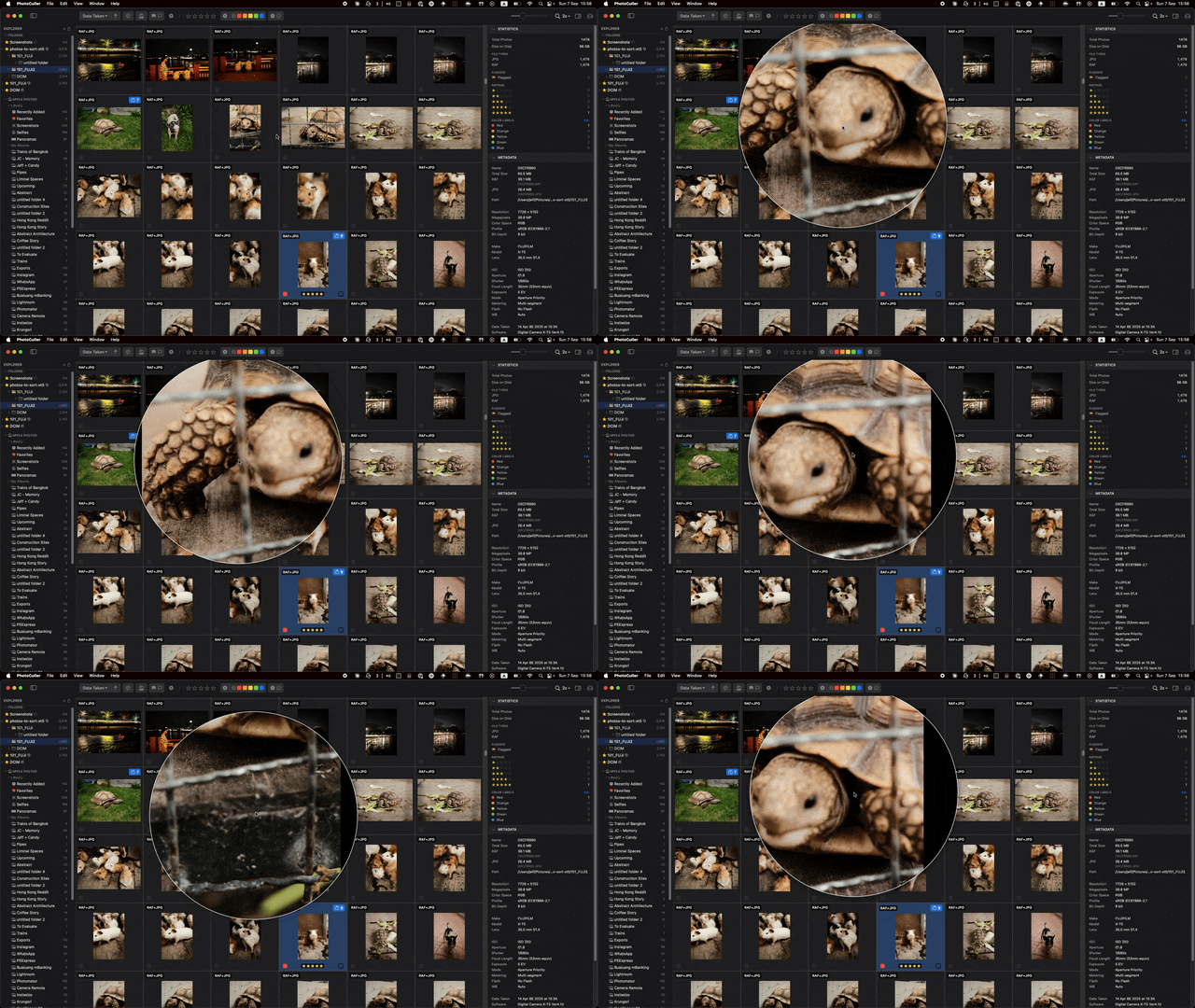
Use it to check sharpness or fine detail without leaving Grid View or switching to Full View. The zoom level for the Loupe is configurable in Settings > Full View.
Client Selection and Image Numbers
PhotoCuller can show optional image numbers on grid cells for proofing and client-review workflows.
- Turn them on in Settings > Grid View or with Cmd + Shift + N
- Use Tools > Client Selection… to match pasted filenames or visible image numbers
- Use File > Save Selection… to save the current selection with optional culling metadata, and File > Load Selection… to restore a pick list. Loading can also change metadata on hidden matches; see selection-file matching and safety.
Rename
Press Enter on a selected photo to rename it inline.
Right-click a photo and choose Rename to use filename variables - useful for batch-style renaming with sequences, dates, or custom tokens. See Quick Transfer and Rename and Template Variables.
Grid Cell Indicators
Each thumbnail can display several badges at a glance:
| Badge | Meaning |
|---|---|
| Stars | Star rating (1-5) |
| Orange flag | Photo is flagged |
| Red heart | Photo is favorited |
| Red X | Photo is rejected |
| Colored rectangle | Color label applied |
| Number badge | Item is part of a stack; number = stack size |
| Lock icon | Photo is locked against edits |
| Play triangle | Item is a video file |
| Orange eye-slash | At least one detected face appears to have a closed eye |
| Image number | Optional proof/reference number overlay |
Locking Photos
Right-click any photo and choose Lock to protect it from accidental rating, labeling, deletion, or metadata edits. The lock badge appears on the thumbnail. Choose Unlock to remove the protection.
Locked items are excluded by default from bulk delete operations.
Drag and Drop
You can drag photos and folders from Finder onto the grid to open or copy them into the current source:
- Drop a folder - opens it in the current or a new tab
- Drop files - copies or moves them into the current source folder, with collision handling if filenames conflict
You can also drag selected photos:
- To a sidebar folder or another tab to transfer them between sources (move by default; hold Option to copy)
- Out of the grid and into Finder or another app when you want to hand files off directly from the current selection
Right-Click Context Menu
Right-clicking any photo (or a multi-selection) opens a context menu with the full set of actions:
- Rate - set 1-5 stars or clear rating
- Color Labels - apply or clear a color label
- Flag / Favorite / Reject - toggle flag, favorite, or reject state
- Rotate Left / Right - apply EXIF rotation (filesystem only)
- Edit in External Editor - submenu of your configured editors
- Select Similar - quickly select photos with the same rating or the same color label as the clicked photo
- Show in Finder - reveal the file in macOS Finder
- Copy Items / Move Items - open the Quick Transfer sheet with destination, template, and filter options
- Rename - open the Quick Rename sheet with template variables
- Apply IPTC Template - submenu of saved templates; applies immediately to the selection
- Create Stack / Auto Stack - group selected photos into a stack
- Expand / Collapse Stack - toggle stack expansion in the grid
- Unstack / Remove from Stack - manage stack membership
- Lock / Unlock - protect or unprotect items
- Move to Trash, Delete from Photos, or Delete Permanently - the delete action depends on the source; camera deletion is permanent when available
Use Select Similar when you want to collect all current 5-star picks, all rejects, or all images with one label before running a transfer or workflow.
Status Bar
The status bar below the grid shows context-sensitive information:
- Nothing selected - total photo count and total size on disk
- One photo selected - full file path (directory, filename, extension) and file size
- Multiple photos selected - selection count, total photo count, and total size of the selection
The status bar can be shown or hidden in Settings > Grid View.
Delete All Rejected
Use Cmd + Shift + Delete to delete rejected items currently shown in the active tab, excluding locked items. Filters and collapsed stacks affect this set. To review the whole loaded source, clear filters and expand stacks first.
Settings > General > File Actions > Confirm before deleting photos controls the PhotoCuller prompt and is enabled by default. The prompt confirms the action; it is not a per-file preview. If confirmation is off, the command can run immediately.
Deletion uses Trash only when the source supports it. Sources without Trash use permanent deletion; a failed Trash operation can also offer a separate permanent-delete retry. Check deletion behavior before running a bulk delete. For moves, Skip is not a guarantee that source files are retained; see Quick Transfer safety.
Bin Presets
Use Tools > Bins to assign the selection to a named transfer destination. With Review and Run Later, numbered Bin badges show assignments, not completed copies. The transfer review covers the whole loaded tab, not just filtered photos. Start with Copy and follow the Bin Presets example.